Installing Dynam-EC
To install Dynam-EC to your PC:
-
Insert the CD-ROM into the PC. Navigate to the CD-ROM and click the relevant *.exe file for your machine. Click: PMSetup
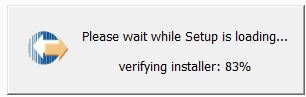
To indicate that the Setup wizard has begun loading, the following screen is displayed:
-
When the Setup wizard has loaded, the License Agreement dialog is displayed:
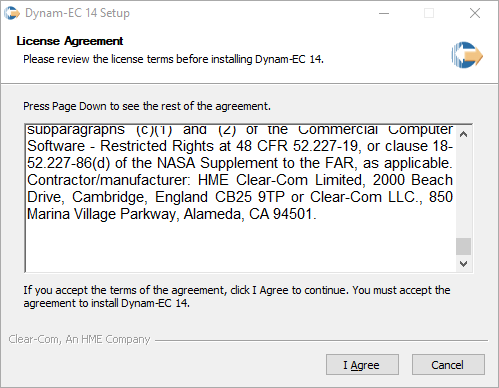
Use the internal scroll bar to review the agreement. To continue with the installation, click I Agree.
To cancel the installation, click Cancel.
Note: You must accept the license agreement to install Dynam-EC.
-
The Choose Install Location dialog is displayed:
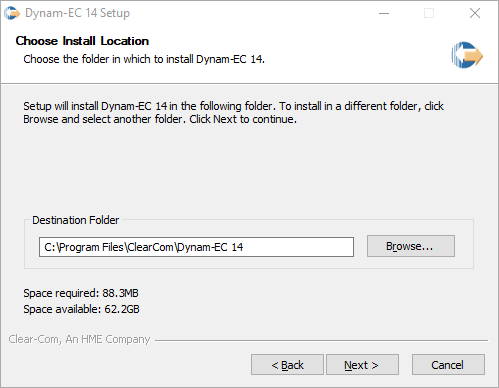
The default location is Program Files > ClearCom on the C Drive. To select a different location, click Browse. To continue, click Next.
To assist your decision, the amount of space required for Dynam-EC, and the amount of available space on the C Drive, is displayed under the location field.
-
The Choose Start Menu Folder dialog is displayed:
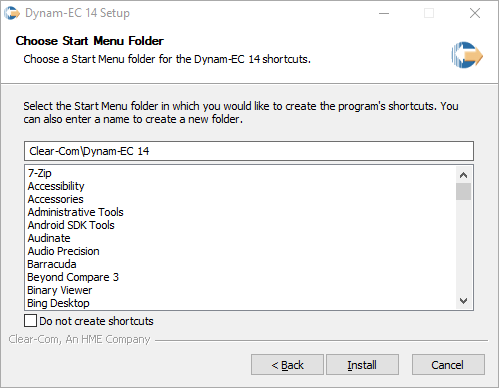
The default Start Menu folders is Clear-Com\ Dynam-EC.
Note: You can find all the Start Menu folders in Start > All Programs. Shortcuts to recently used and popular programs are shown in the main Start menu.
To select an alternative folder, do one of the following:
-
Select from the list of existing Start Menu folders. Use the dialog scroll bar to navigate the list.
-
Enter a name into the selection field to create a new folder.
To prevent the creation of shortcuts, select Do not create shortcuts.
Click Install.
-
Dynam-EC starts to install. During installation, an installation progress bar is displayed. For more detailed information about the progress of the installation, click Show Details.
-
When the installation is complete, click Close.
Dynam-EC has now been installed to your PC. You are now ready to start Dynam-EC.
On installing Dynam-EC, a firewall dialog may be displayed asking if Windows should Block or Unblock Dynam-EC. Select Unblock Dynam-EC.