Configure Palette Mode
To place Dynam-EC in Configure Palette mode, select Configure Palette from the operational modes menu to the left of the screen.
The selected mode is highlighted in orange.
In Configure Palette mode, the canvas lists all the available items (panels, four-wires, idents, monitors, and key groups) that you can add to the palette.
The items that you drag and drop to the palette can be used in Assignment mode to make assignments to conferences and Port Viewers in real-time (see Assignment Mode).
Organizing and searching for items on the Configure Palette canvas
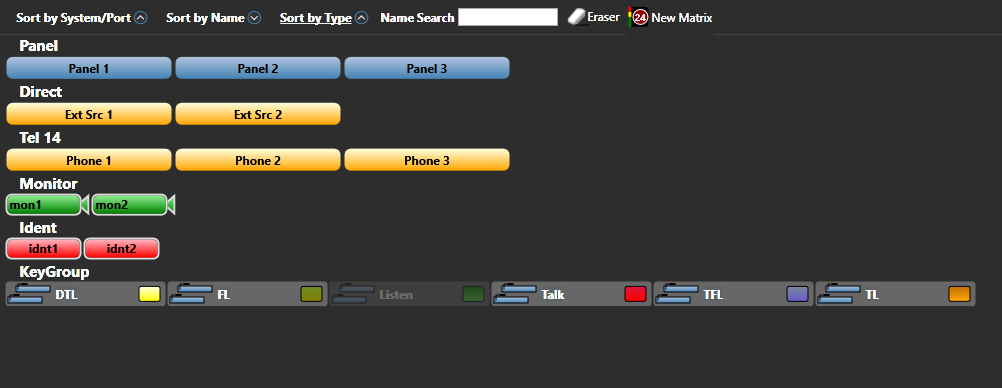
The principle function of the Configure Palette canvas toolbar is to help you organize and search the listed items.
To list and organize by system or port, click Sort by Type.
The Sort by Type button is underlined in white.
The available items are:
-
Organized by system / port name (for example, System 1).
-
Listed in ascending name order.
To toggle between ascending and descending order, click the circled arrow next to the Sort by System / Port button.
To list and organize by the item name, click Sort by Name. The Sort by Name button is underlined in white.
The available items are:
-
Organized by name (in numeric order, letter order, and / or character order, according to the item label).
-
Listed in ascending order.
To toggle between ascending and descending order, click the circled arrow next to the Sort by Name button.
To list and organize by the type of item, click Sort by Type. The Sort by Type button is underlined in white.
The available items are:
-
Organized by type (for example, Panel, Direct (four-wire), Ident, Monitor, Key group, FreeSpeak® Beltpack Role or FreeSpeak II™ Beltpack Role).
-
Listed in ascending order.
To toggle between ascending and descending order, click the circled arrow next to the Sort by Type button
To search for an item by name, enter the name of the item (or part of the name of the item) into the Name Search.
The matching item(s) are listed onscreen.
Eraser tool and Meter tool
The Configure Palette canvas toolbar also includes the Eraser tool and the Meter tool. Both of these tools be dragged and dropped to the palette for use in Assignment mode.
Use the Eraser tool to roll back the changes that are made to conferences and IFBs in Dynam-EC. For more information about the Eraser tool, see Erasing Changes to Conferences and IFBs.
The Meter tool is used for adding a meter to a four-wire on the palette. For more information, see Adding a Meter to a Four-Wire on the Palette.
Adding items to the palette
Drag and drop the items you require (such as panels, four-wires, idents, monitors and key groups) from the canvas to the palette. Organize the items by dragging items anywhere on the palette. The items you add to the palette are those that will be available to you in Assignment mode (see Assignment Mode).
The location of the items on the palette is locked in Assignment mode. To relocate items on the palette, you must return to Configure Palette mode.
You can navigate between different palette configurations using the tabs at the top of the palette screen.
Add a new tab by clicking Add Tab.
Remove the selected tab by selecting Remove.