How to Configure and Use Key Groups
To configure and use key groups you will work with both EHX and Dynam-EC.
EHX:
-
Create keygroup(s)
-
Set basic options
-
Set key group activation type
-
-
Assign key groups to panel keys
Dynam-EC:
-
Configure
-
Palette
-
Canvas
-
Assignment
-
EHX: Create Key Groups
Navigate to: Configuration > Key Groups > Create Key Group
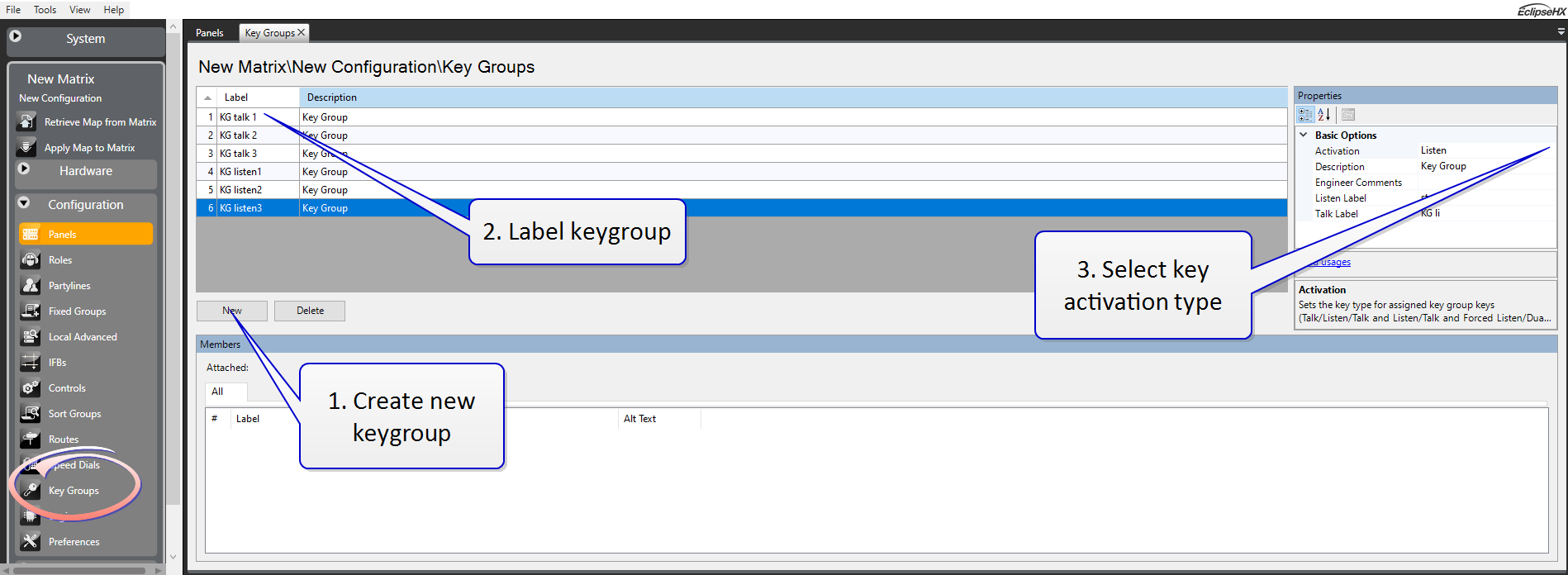
Key Activation Types
Activation determines how the assigned keys of the key group behave when the key group is activated.
-
Talk and Listen
-
Talk
-
Listen
-
Talk and Forced Listen
-
Dual Talk and Listen
-
Forced Listen
For key groups, Talk and Listen activation types can only be used on panels with a push control. If you are using rotary and lever panels, you must create and assign separate Talk and separate Listen key activation type keygroups (assuming you want a talk and a listen). This is because rotary and lever panels have a keyset that is split between talk and listen (two separate entities). For a push button panel, this is not the case.
| Note: | Key groups can be placed on keys that already have a label assigned. In this case the key will function with the statically assigned label until the key group is assigned in Dynam-EC. At this point the key group target label will be displayed. When the key group is cleared in Dynam-EC the key will revert to the default label assigned in EHX |
EHX: Assign Key Groups to Panel Keys
Navigate to Configuration > Panel Programming
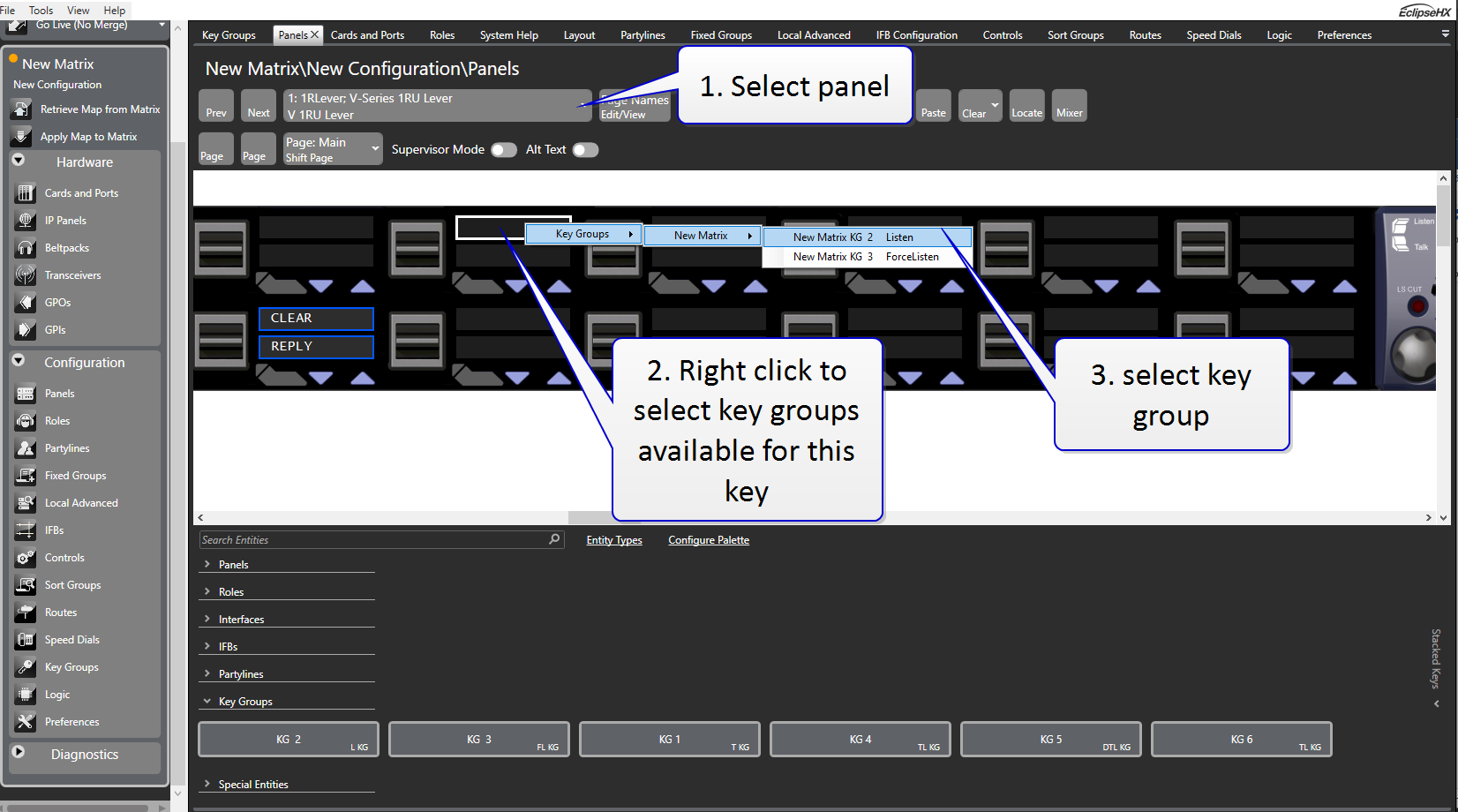
Example Talk and Listen on a rotary panel:

| Note: | Once assigned, the key group will have a white border in the panel mimic. |
Put as many key groups on as many panels as are required (max 100 key groups across the whole networked system).
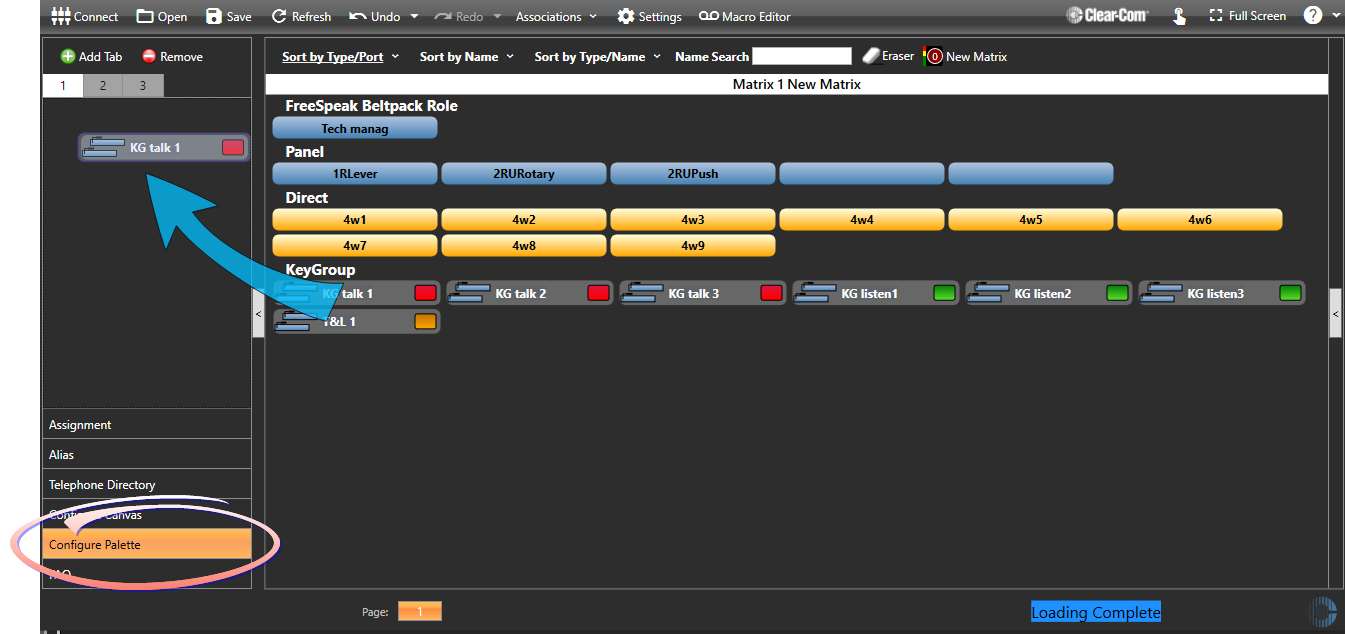
Dynam-EC: Configure Pallette
Dynam-EC must be connected to your matrix.
Select the Pallette tab. Drag the entities you require (key group members) on to the pallette.
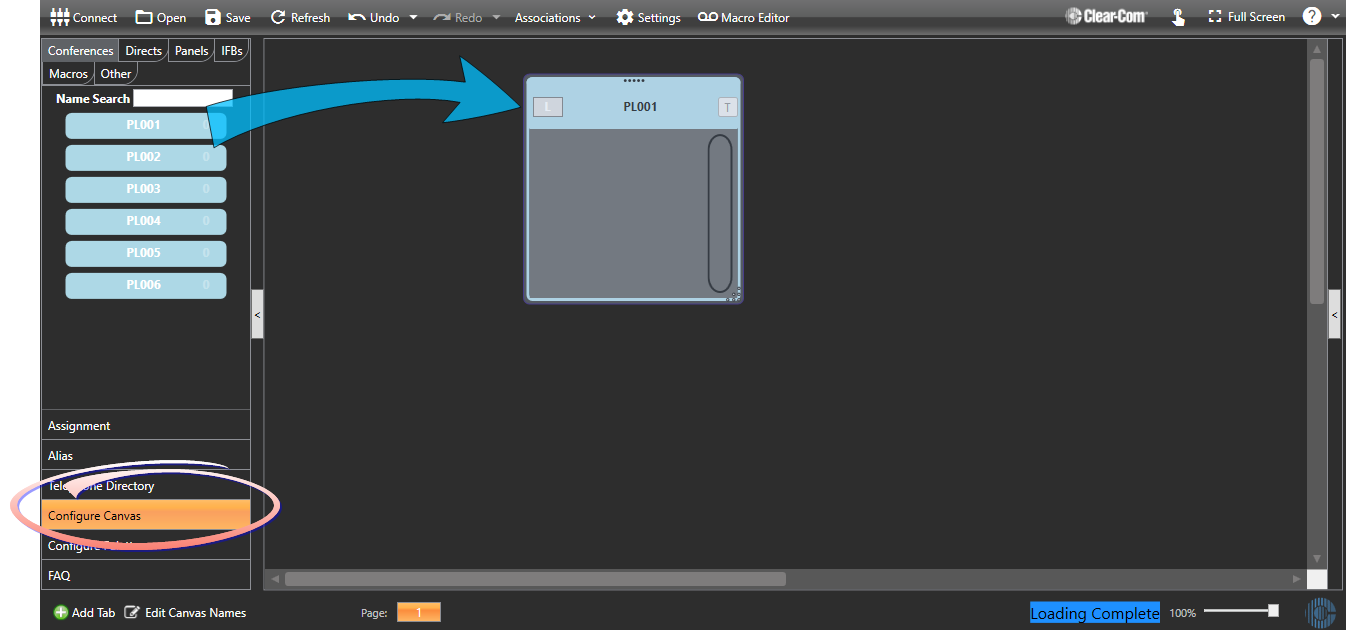
Dynam-EC: Configure Canvas
Select the Canvas tab. Drag the entities you require onto the canvas. This example uses partylines.
Dynam -EC : Configure Assignment
Select the Assignment tab. Drag the key groups onto the audio targets.
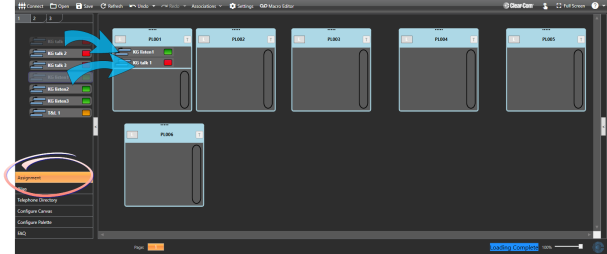
EHX: View key group assignment
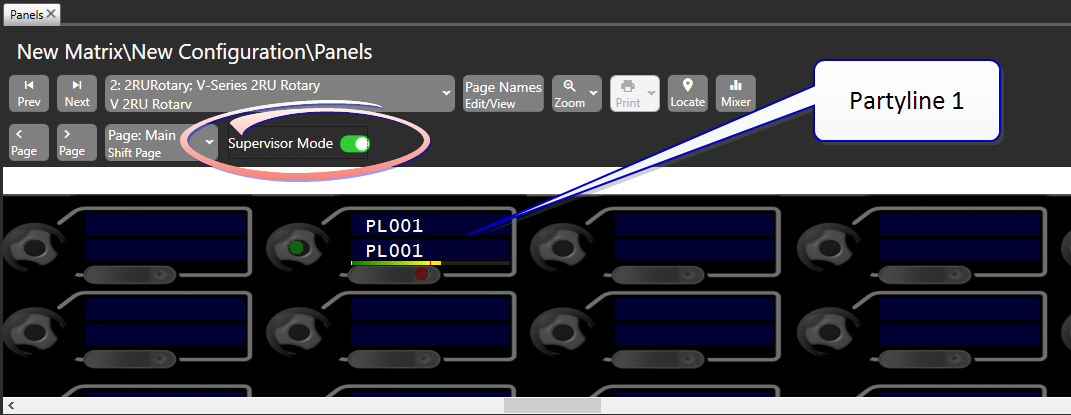
In the Panels page, select the panel you have assigned a key group to. Enable supervisor mode. In this example you see that Paryline 1 has been dynamically assigned to the key set.
Dynam-EC: use key group to change audio configuration
In the Assignments page, drag the key group(s) on to another target entity.
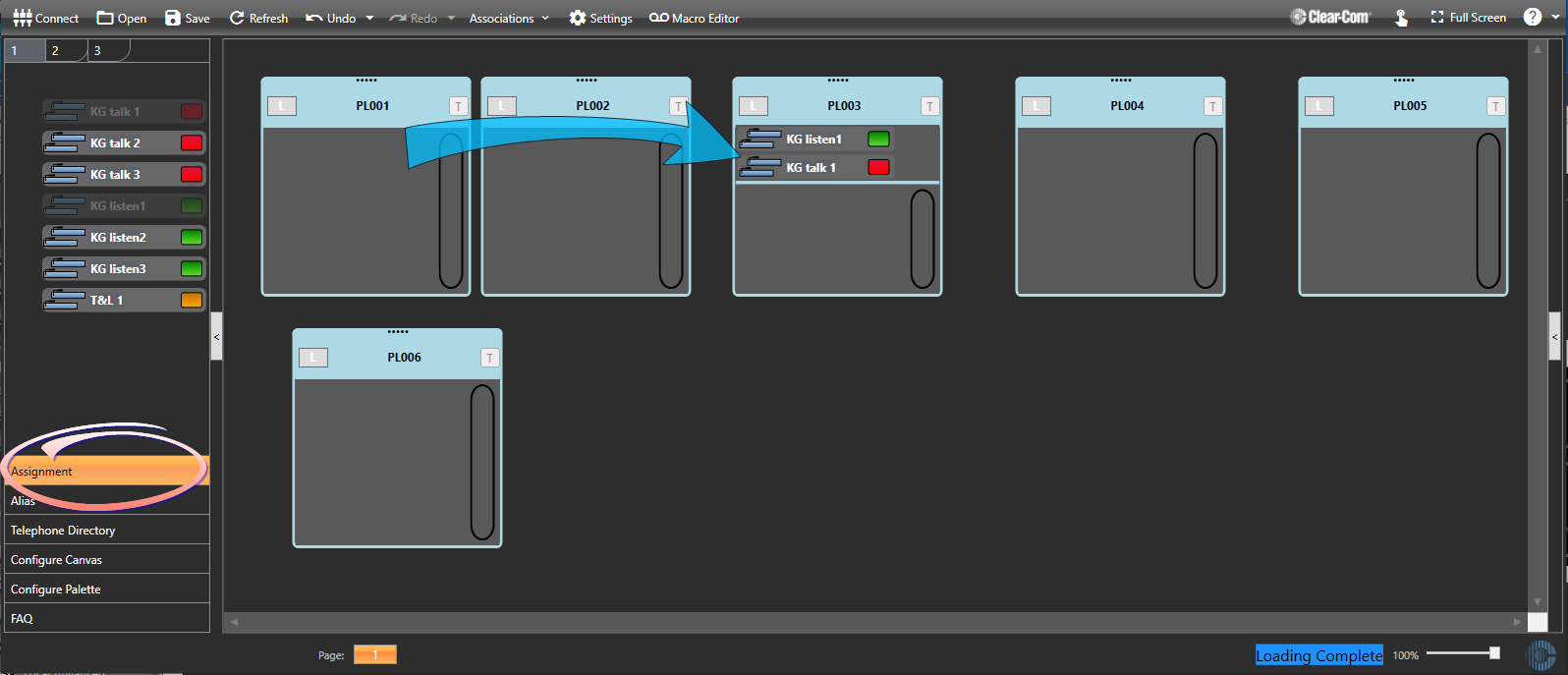
When you have done this, you will see the labels on the panel keys change (in this case, to Partyline 3). Either look at the physical panel or use supervisor mode in EHX.
To record a macro using key groups see:Chapter 4, Using Dynam-EC, Macro Editor in the Dynam-EC Manual.