Managing Roles
Roles are used to contol the audio configuration and other settings for beltpacks and other devices.
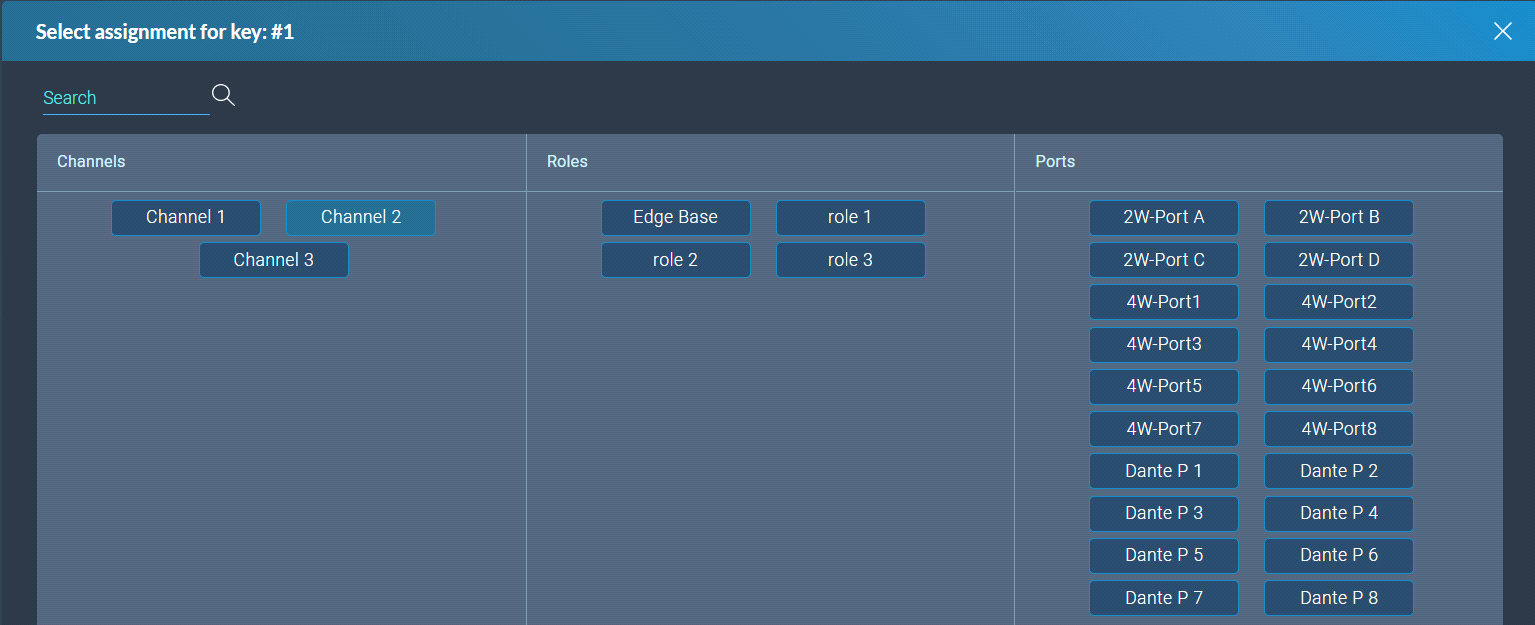
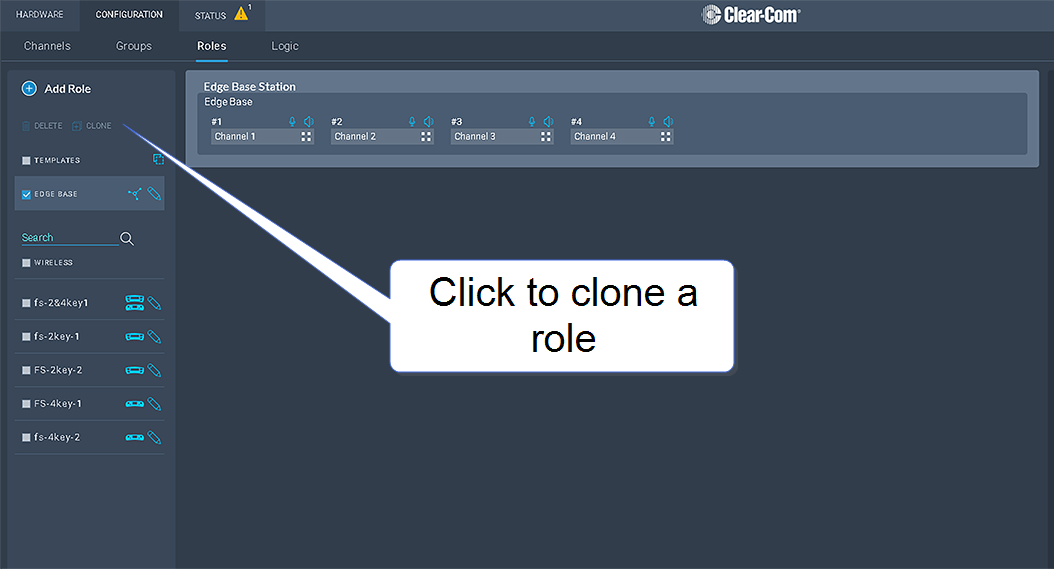
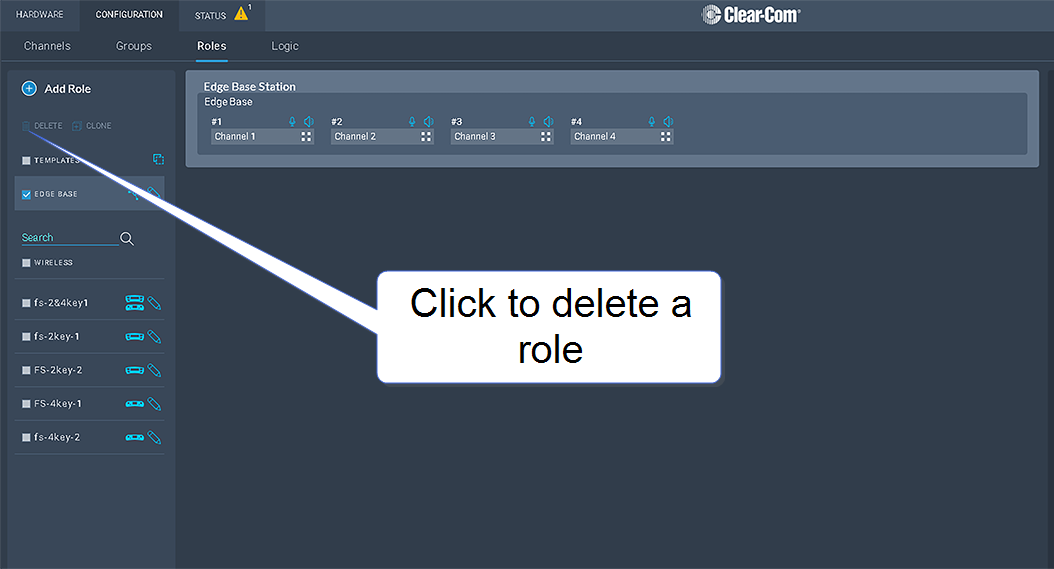
From the Roles page, you can view, add, clone, edit and delete roles.
When creating roles, roles can be:
When working with FreeSpeak (4 key or 8 key), a role must be created for each beltpack or device that you use. This relationship is 1:1. If you want the same settings for multiple beltpacks, you may decide to clone an existing role.
You can create a role that can be used on either a 4 key or an 8 key beltpack. In this case, you will configure two separate audio configurations, one for each beltpack type. This role can only be in use on one beltpack at a time.
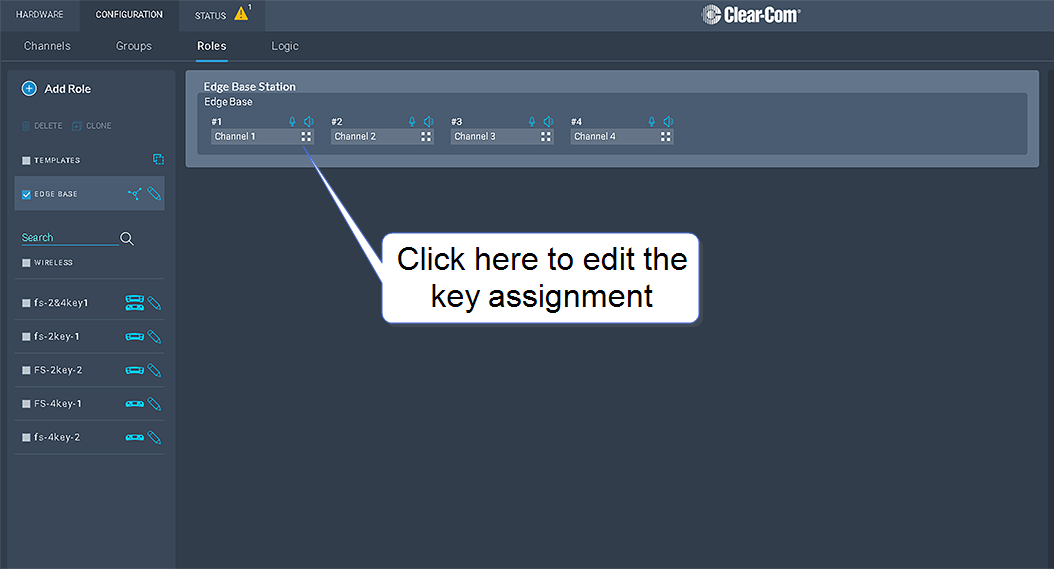
To view roles, navigate to Configuration > Roles. The following screen appears.
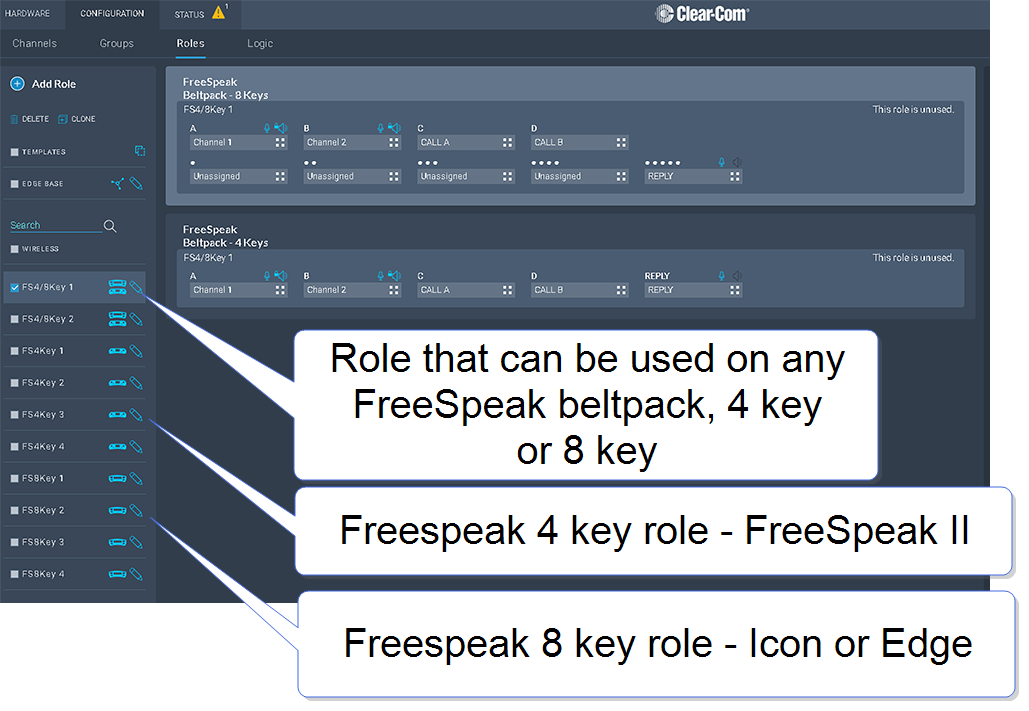
A list of roles appears on the left-hand side of the screen.
When you add roles, a new role is always created from a template role. Template roles are editable. If you edit a template role, any new roles created from it have the edited settings.
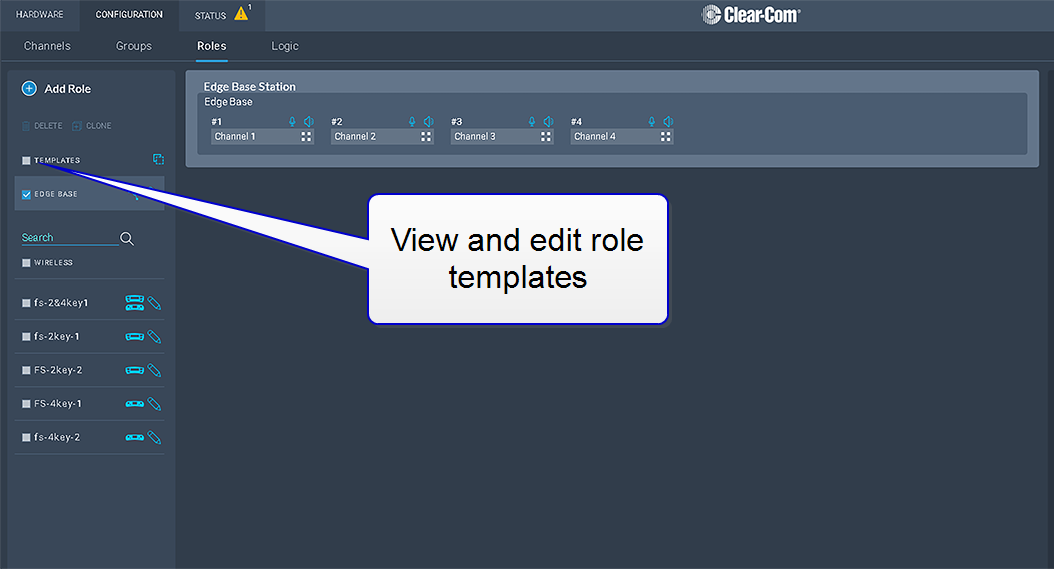
Select a role template to edit the settings.
To reset template roles to default settings, reset the Base Station to factory defaults.
| Note: | The role templates you see depend on which feature licenses you have on the Base Station. |
To add roles:
Navigate to Configuration > Roles.
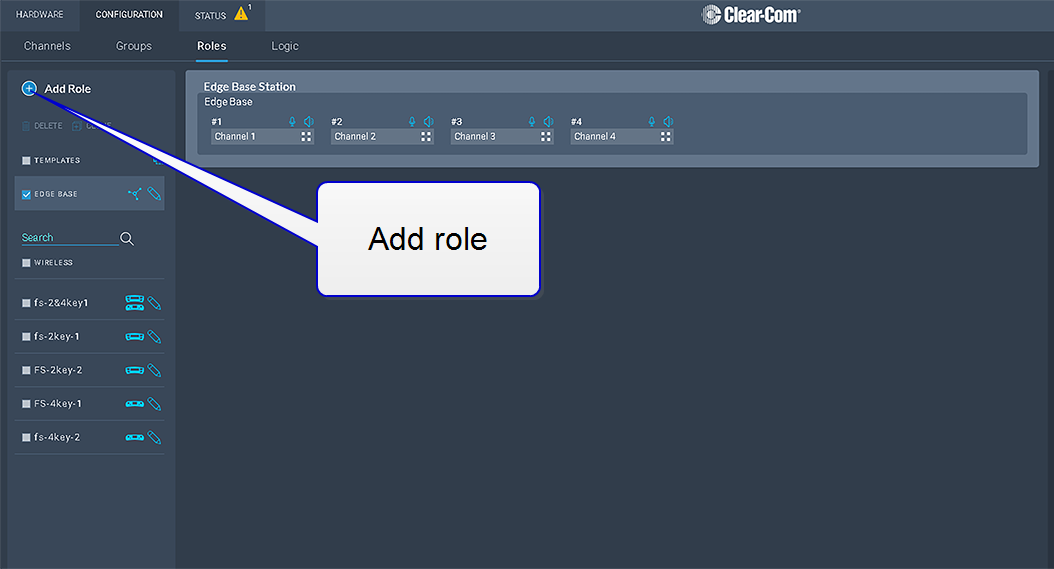
Click Add Roles. The following screen appears.
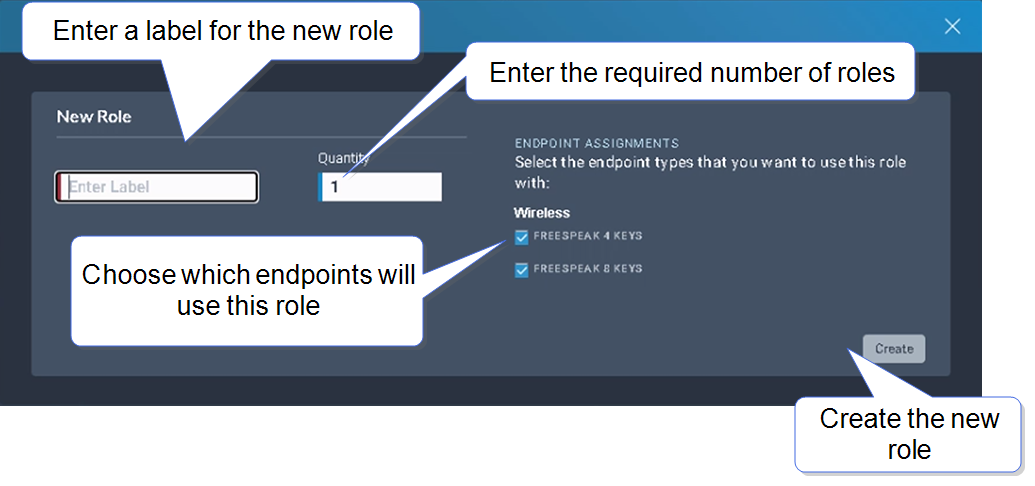
Enter a label for the role, the number of roles required and choose which endpoints will use this role (FS II, FS Edge, FS Icon, all FS type beltpacks).
Note: When creating multiple roles, the system will add an incrementing numerical suffix to the role name. Roles names must be unique.
Click Create. The new role appears in the list of roles in the left-hand side of the Roles screen.
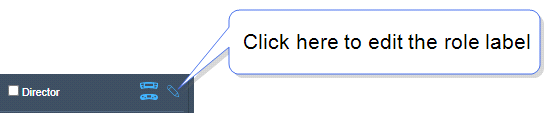
Note: You can also edit the label and endpoint assignments from the icons that appear beside each role in the left-hand side of the screen.
 Viewing Roles