We'd value your feedback. Click here...
Setting up a Key Expansion Group
HelixNet units can be expanded and stacked to allow for visual monitoring and easy control of multiple Channels. Up to five devices (HMS-4X, HRM-4X) can be stacked in an Expansion Group, allowing for convenient observation and control of up to 24 Keysets. This gets rid of the need for multiple key presses and microphones. When using this type of connectivity, the Expanded panels act as slaves to the Host panel.
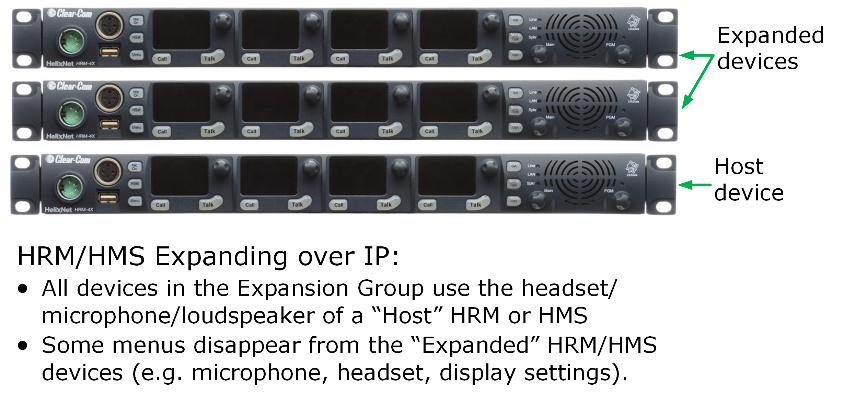
To set up an Expansion Group, once the devices have been connected to the same LAN by Ethernet cable, you will need to identify a Host device. This is done from the front panel menu of the device under Station Settings. Then designate the panel(s) to be stacked as Expansion Panel(s).
Once this set up is established, you will be able to control all Channels from the Host panel.
Volume and buttons are synched.
Unused buttons on Expanded panel are disabled: HSet, Mic On, SA, All Talk, OPT, Main, PGM.
Restrictions:
Devices can only connect as an Expansion Group over LAN, not when connected over digital Partyline.
HMS-4X or HRM-4X can act as Host Panel.
HMS-4X can only act as a key Expansion Panel to another HMS-4X.
HRM-4X can act as a Key Panel to an HMS-4X and an HRM-4X.
If an HRM-4X is already Paired to an HMS-4X, it will only see Host Panels that are part of the same group.
If an HRM-4X is not Paired yet to an HMS-4X, it will see all Host Panels in the subnet and will automatically Pair at the same time if a Host Panel is selected.
An Expansion Group must be set up from the device menus, and cannot be set up from the CCM.
To set up a key Expansion Group (example set-up)
Designate the expansion Host unit:
-
On the Host device, press the MENU button to enter menu mode.
Note: For each menu, turn the rotary control clockwise to scroll down the menu items. Turn counter clockwise to scroll up the menu items.
Off-screen menu items are indicated by arrows at the top and/or bottom of the screen.
Selected menu items (which create your path through the four menus) are highlighted in solid yellow.
The current setting is indicated by a dotted box around the menu item
When you have selected a setting by rotating the right hand rotary control, press that rotary control to enable the setting on the Main Station.
-
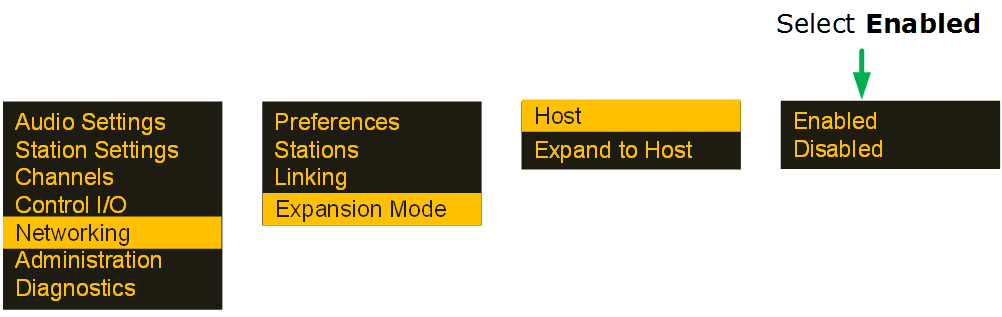
Navigate to Menu > Networking > Expansion Mode. Select Host.
-
From the 4th screen on the device select Enabled. The device will then be open for expansion.
Note: On both Host and Expansion panels a “stacking” icon will flash until connection is established.
|
Stacking icon |
|
|---|

Designate the Expansion panel and link it to the host:
-
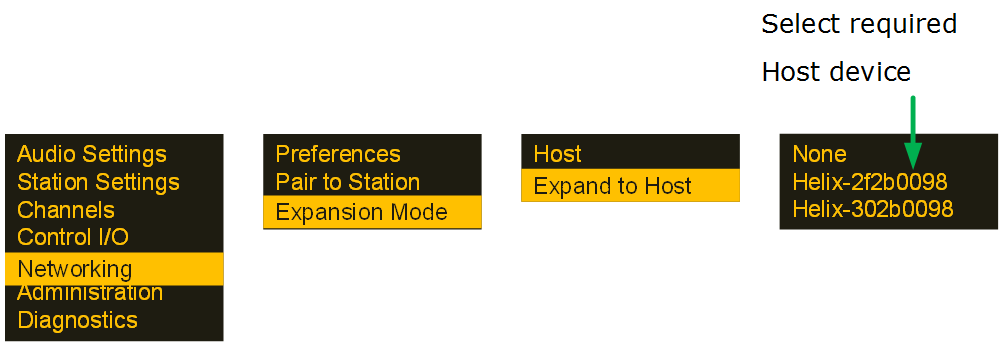
From the front panel menus of the panel you wish to expand from the host, navigate to Menu > Networking > Expansion Mode > Expand To Host.
-
Select the required host panel using the rotary controllers, which, providing the devices are on the same network, will be visible in the 4th screen.
-
The stacking icon will flash in the screen until connection is established. Once the connection is established, the icon will show solid.