Local Audio Mix
Local Audio Mix is also referred to as 'submix'.
If two ports or more ports from the same LQ unit are placed into the same Channel, the LQ unit will create a LAM or submix. The LAM mixes audio at a very early stage of the audio transport which reduces the latency of the audio streams and (below 4ms) and improves audio processing. LAM is a way of improving latency, increasing the capacity of an LQ device in certain use cases and reducing network usage.
The LAM is performed automatically when ports are added to a Channel.
| Note: | Ports from each LQ appear within a box, with the local audio mix icon in the bottom right corner, where you can program network quality settings. |
| Note: | LAM is not available if you are using a HelixNet/LQ Link-Group. |
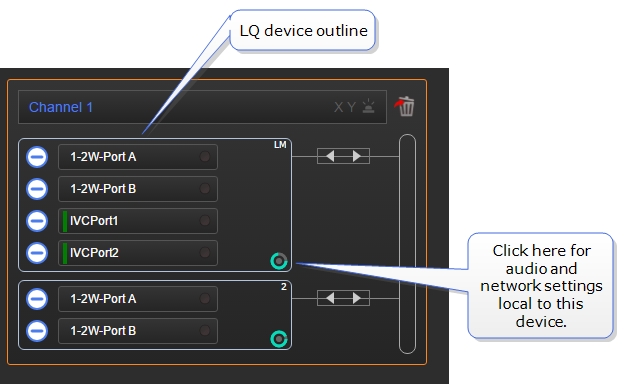
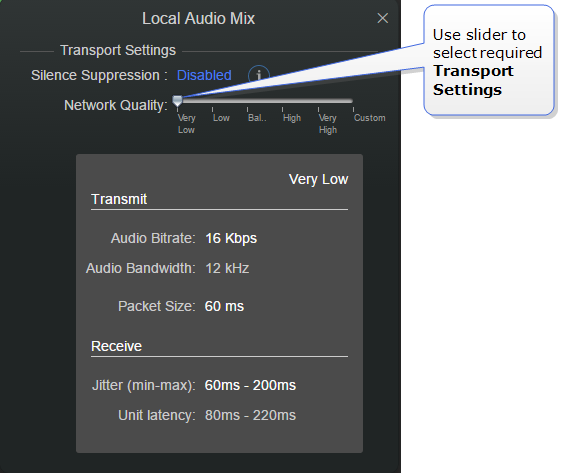
| Note: | Transport settings within a Channel are set on a per-device basis. To set differing network quality for ports from the same device, put the ports in separate Channels. |
| Note: | The network setting is the bandwidth from the LQ device into the IP network. |
 Silence suppression
Default = Disabled
This option will stop transmission and implement comfort noise when silence is detected. This is done to conserve network resources.
Network settings guidelines
If connecting over LAN/WAN/Internet we recommend the following transport settings:
- Internet - use very low or low
- LAN/WAN - use balanced or high
- LAN only - use very high. This option allows for 20 kHz bandwidth.
Transport Settings are accessed via the LAM icon.
Custom setting
The Custom option allows adjustment of the jitter buffer setting independent of bit rate and packet size.
The jitter buffer setting is designed to buffer audio received to prevent loss is there is network jitter. Please note that the jitter buffer selection will directly affect the latency. This is because the lower number in the jitter range represents the amount the LQ unit will buffer audio before delivering it to the port. A bigger jitter buffer setting will increase latency in milliseconds.
| Note: | Within the Custom setting, selecting an Audio Bitrate of 128 Kbps will automatically set Bandwidth to 20 kHZ. |
Network/Transport settings reference and defaults
| Network Quality. Click on the slider to set. | Default setting shown in Bold |
|---|---|
| Transmit | |
| Audio bitrate | 16,32,48,64,128 Kbps |
| Audio bandwidth | 12, 20 kHz |
| Packet size | 60,40,20,10,5 ms |
| Receive | |
| Jitter (min-max) | 60-200, 40-100, 20-60, 5-60, 3-60 ms |
| Unit latency | 80-22-, 60-120, 40-80, 25-80, 23-80 ms |