Setting up a Link-Group Using HTTPS
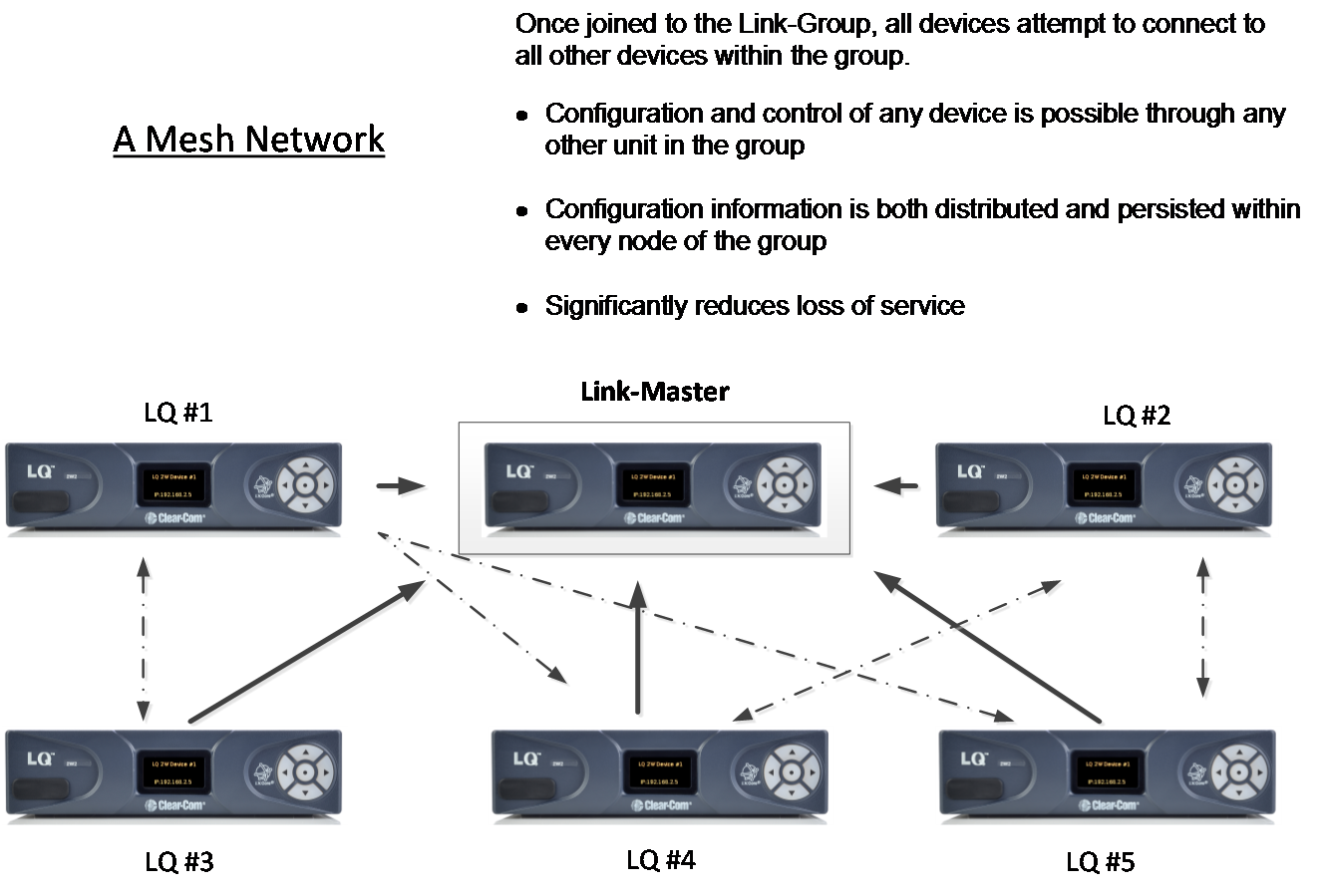
LQ units establish a robust mesh network when transporting audio (see image above). The units use a series of IP ports to create this mesh:
Management (login credentials, setup details, IP addresses)
- TCP port 80 (HTTP)
- TCP port 443 (HTTPS)
Linking (audio)
- TCP/UDP port 655 (encrypted channel)
The devices will pass management details via either port 80 or port 443 (depending on which prototcol is used). To ensure this information passes via an encrypted route, enable the Force HTTPS feature on every LQ device in the Link-Group. The devices will pass information on either management port, but the route will not be secure unless all the devices use HTTPS.
To create a Link-Group using the HTTPS protocol you will follow the same procedure as when using HTTP; you must give the member unit the IP address of the Link-Master unit. When linking units over the HTTPS protocol, you must specify HTTPS in the Linking page of the Link-Member.
For more information on the Linking procedure see: Creating a Link-Group
The port number does NOT need to be specified unless you are linking units over a firewall where port forwarding rules apply. In this case (units traversing a firewall to reach each other) you must specify the external IP address and the external port, so the units can cross the firewall.
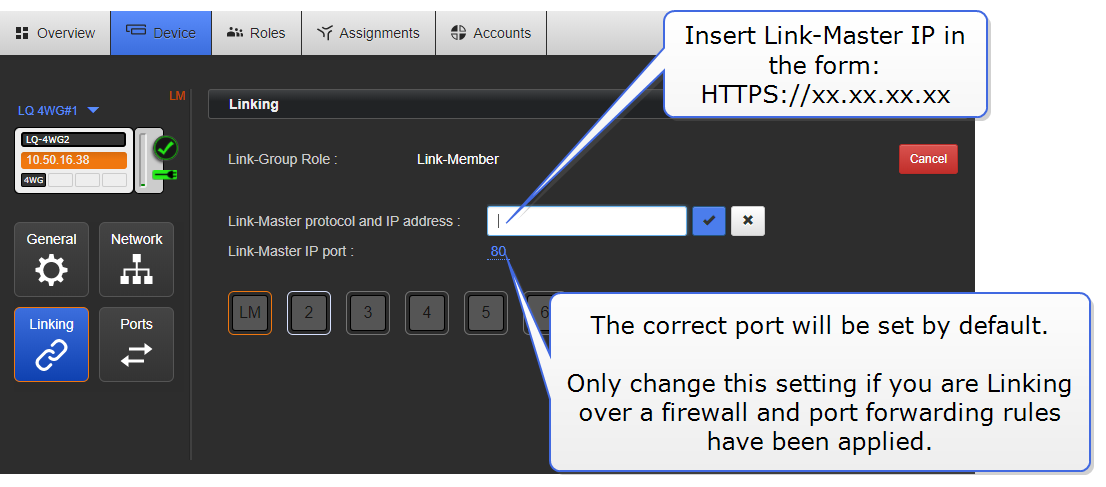
| Note: | If you try to link to a device that has been set to Force HTTPS without specifying HTTPS , you will get a device not found message because the HTTP port is turned off. |
| Note: | Before using the Force HTTPS feature, you must first install a security certificate on your browser. When using HTTPS with a Link-Group, every browser instance used to reach and configure the devices must have a security certificate installed. |
For more information see: