Configuring the PGM Keyset and Level Control
Configure PGM in the CCM
-
In the CCM, navigate to: Configuration > Roles > [select role] > PGM
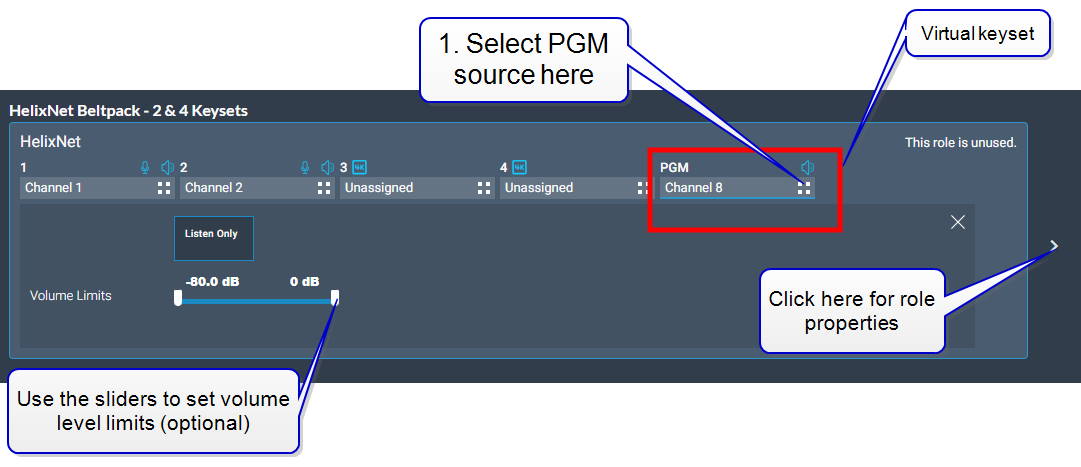
-
Select required channel from the screen overlay, then DONE to close.
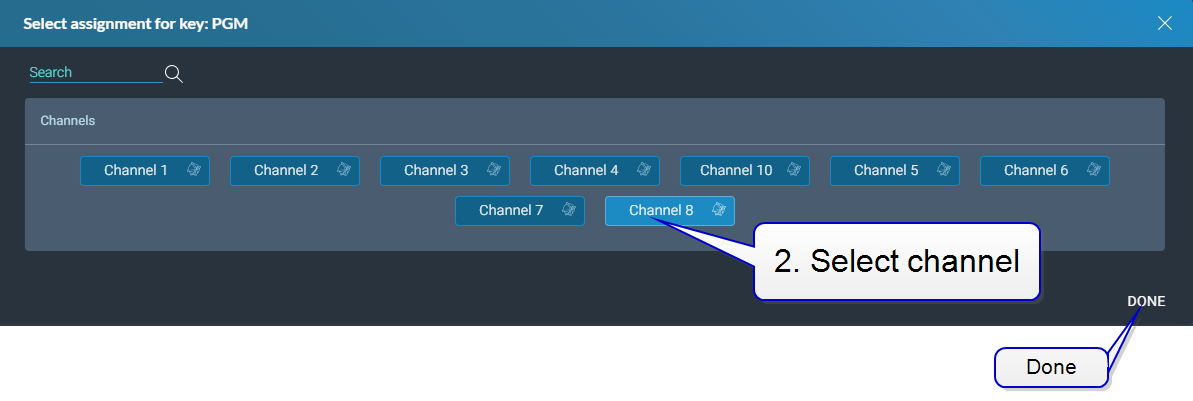
| Note: | Channel selection toggles on and off. Click again to deselect. |
| Note: | This example uses a beltpack role. To configure a program feed for a remote or speaker station, use a remote or speaker station role. |
Assigning audio to the PGM channel
Audio is assigned to the PGM channel in the usual way.
-
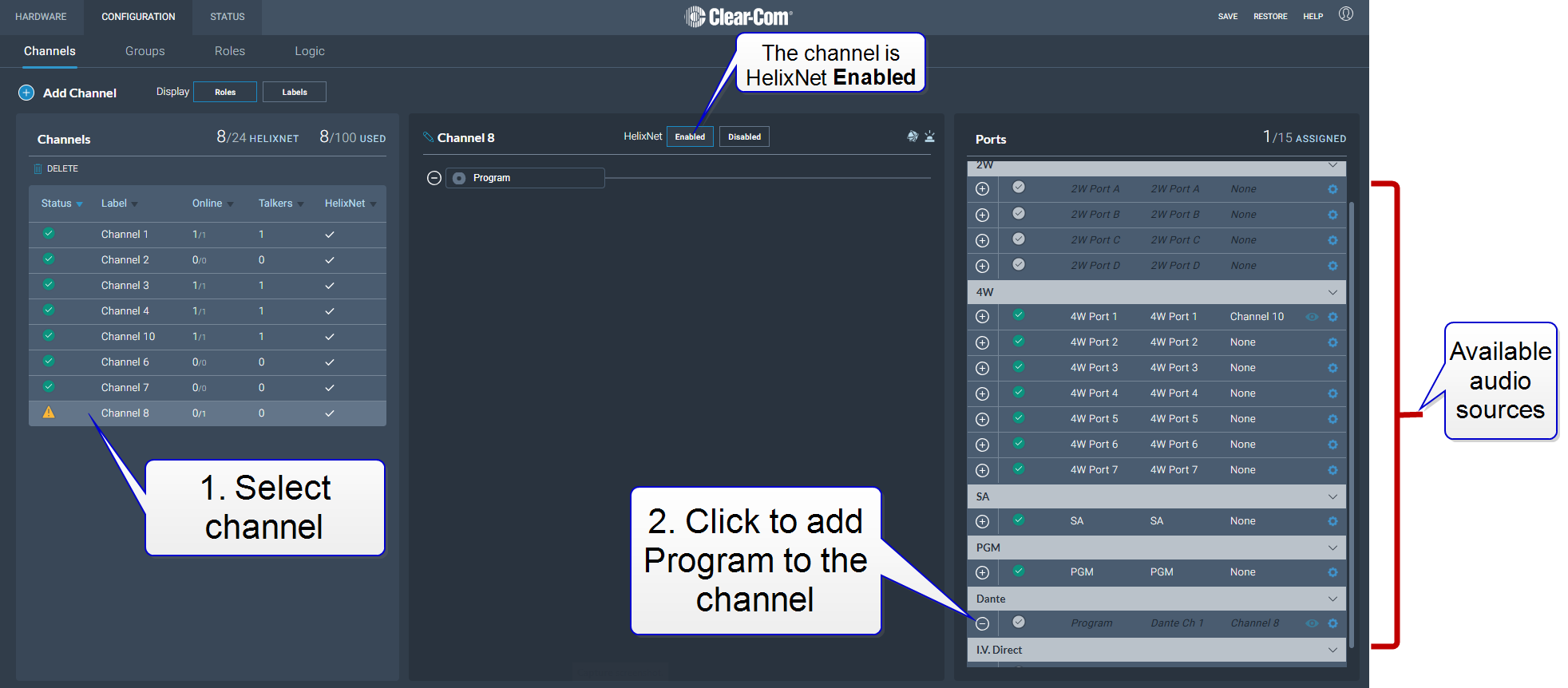
In the CCM, navigate to Configuration > Channels [select channel]
-
Click the plus sign to add an audio source to the channel. In this example we have added a Dante feed, but any available audio source can be used.
| Note: | The PGM channel must be HelixNet enabled. |
When you have completed these steps and connected the program feed to the appropriate interface on the rear of the Arcadia, the program feed is available in your HelixNet device headset or loudspeaker.
Configure PGM from the device front panel menu system
Beltpack:
-
Press the Menu button, then back (bottom left call key)
-
In the beltpack menu system, navigate to: Beltpack Settings > Program > Channel Assign > [select channel]
Remote or speaker station:
-
Press the Menu button
-
In the menu system, navigate to: Station Settings > Keyset Assign > Program > [select channel]
Setting PGM volume levels
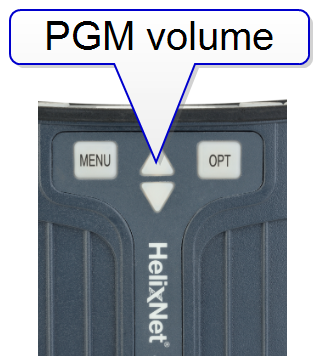
Device PGM volume levels are adjusted as before, using the arrows on the HX-II models or the back rotary on older models.:
| Beltpack: |
|
| Remote or Speaker Station : | Use the controller labeled PGM on the front panel of the device |
| Note: | Program level limits are set in the CCM on the endpoint role. |